👁 8275
PS:现在QWRT已经在5分月更新了 一个固件 所以刷入新版的系统的话下面的可以跳过不用去设置了。。 现在和其他版本的qwrt差不多了
要详细刷机的看另外链接,https://godsun.pro/blog/jdc-be6500openwrt
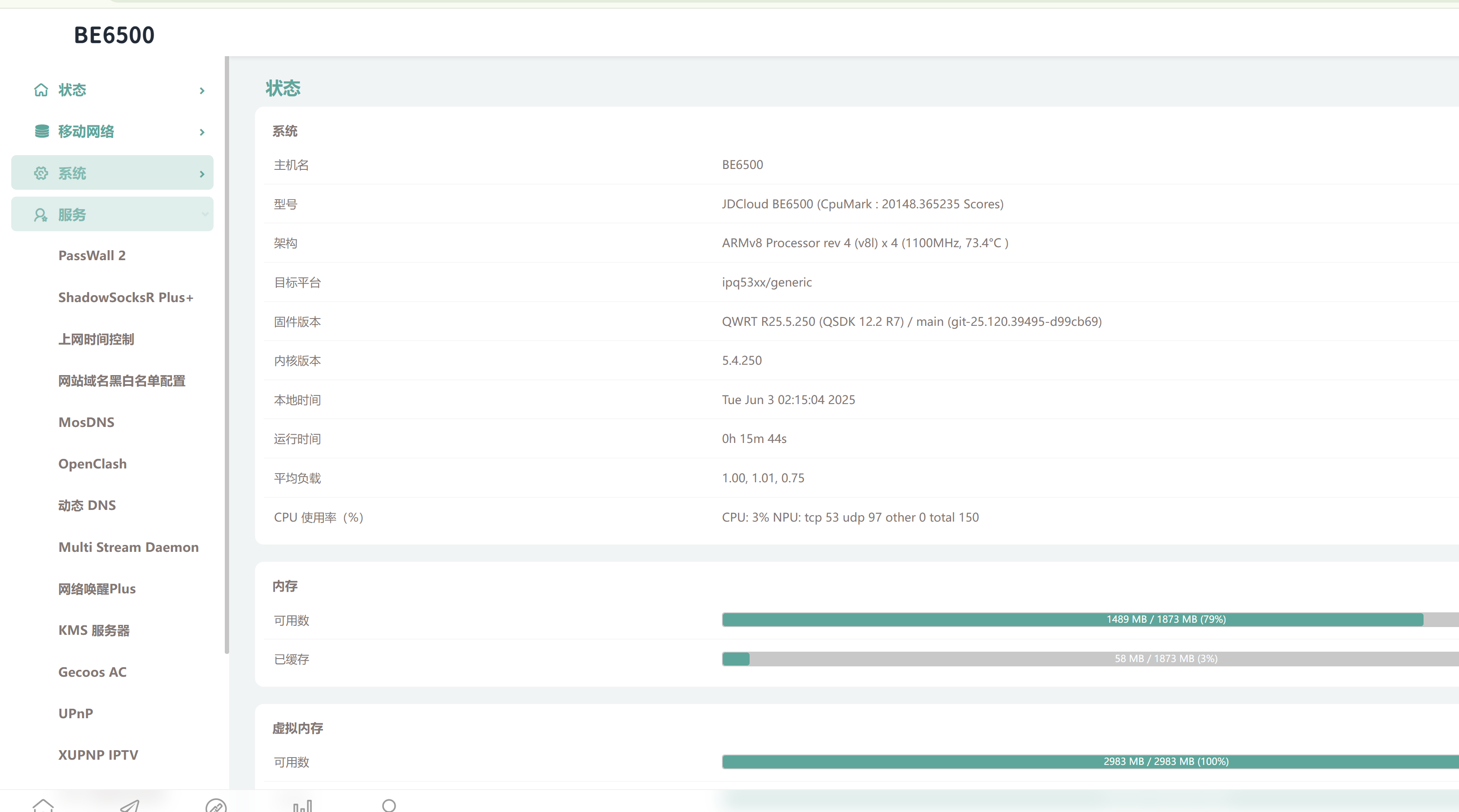
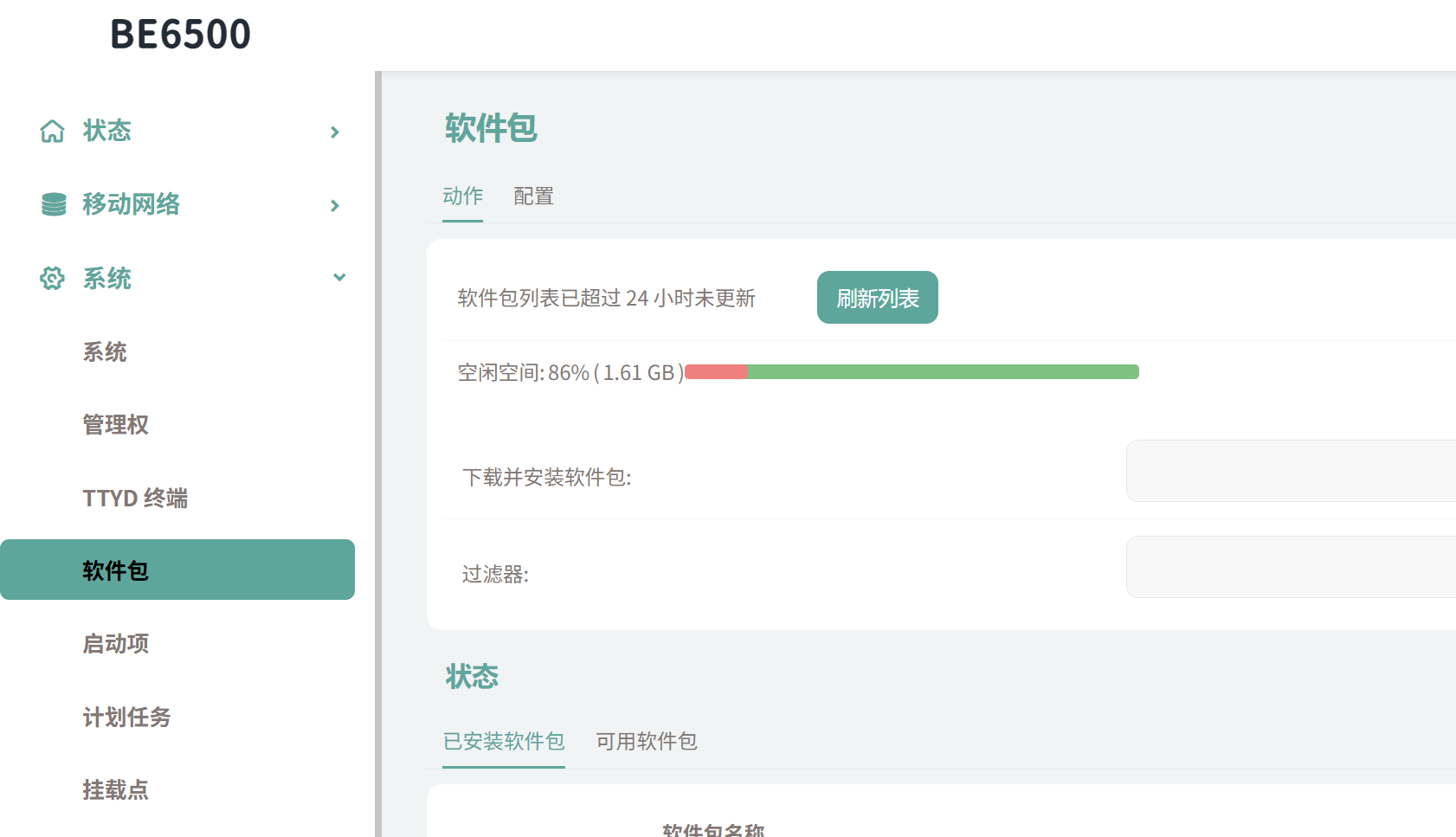
分区我的也从新调整了 去掉了后面几个没用的扩容23分区2G大分区随便安装插件 内存也硬改了2G,直接用2G的DDR4 BGA96 单晶颗粒 即可
cdt的刷入 这个和之前的机型有一点点差别 他在 11和12分区。 uboot没带刷入cdt的入口,直接 ttl或者在ssh下写入对应分区即可。
改了分区不要用uboot再刷固件,大概会无限重启!如果已经挂了,就先恢复gpt分区表在试试吧。。 这货启动大概3分钟才会绿灯,最新的固件启动不亮绿灯,应该配置问题,灯灭了后,进路由后台设置LED删掉或改成你喜欢的样式配置即可。
耐心等看看
dd if=cdt.bin of=/dev/mmcblk0p11 && dd if=cdt.bin of=/dev/mmcblk0p12 && reboot前提文件改名 cdt.bin 然后终端在当前文件夹下,
刷完正式用的话 也和其他机型一样的了 秉承QWRT一贯作风有几个插件是隐藏了的。。需要
芝麻开门 开启 一些插件
ssh下输入
echo 0xDEADBEEF > /etc/config/google_fu_mode此机刷机还是很邪乎,爱罢工 不进系统反复重启。。。非必要不建议刷,除非已经刷了QWRT,另外改动过分区在uboot刷好像也会这样,
如果不幸你的也反复重启,ttl下恢复一下分区表在试试看吧。。 反正玩它就做好折腾的准备,,!固件不直接挂出来了 需要 到群内找吧
如果折腾的都启动不了的话 就编程器来吧 !
https://godsun.pro/blog/jdc-be6500-emmc
旧固件看下面。
这个机器目前就一个 在恩山的固件
只能说是不用原版的唯一选择. 也就将就用着..
今天网友买一台给我帮我刷OP然后加装openclash 和不全一些软件 搞了下 内核模块之类的有些问题 安装不了 最旧固件看下面
1,首先
把源替换掉 固件的好多更新不上
opkg配置
dest root /
自定义源 可以不填
更换完后 opkg update 应该没有报错了… 如果有可能源更换的地址或者DNS问题了 吧 检查一下或者把报错问题问 chatgpt
主要更换openwrt还是想FQ的多吧。 这里安装一个 openclash
# Clone 项目
mkdir package/luci-app-openclash
cd package/luci-app-openclash
git init
git remote add -f origin https://github.com/vernesong/OpenClash.git
git config core.sparsecheckout true
echo "luci-app-openclash" >> .git/info/sparse-checkout
git pull --depth 1 origin master
git branch --set-upstream-to=origin/master master

# 编译 po2lmo (如果有po2lmo可跳过)
pushd luci-app-openclash/tools/po2lmo
make && sudo make install
popd

# 开始编译

# 选择要编译的包 LuCI -> Applications -> luci-app-openclash
OpenClash下载
简单安装 先不全 安装依赖.. 看有什么报错的解决报错 在去ipk安装
IPK 地址: https://github.com/vernesong/OpenClash/releases
国内盘我也放一个吧 省的有时候网速慢..
https://p.godsun.pro/路由器/IPK软件/openclash 登录 用户:数码罗记 密码:Abc123
请先安装好这些依赖:
#iptables
启动前请先在插件设置页面的版本更新标签下确认
内核编译版本,您也可以手动下载 Clash内核 后解压到/etc/openclash/core/文件夹,并将二进制文件命名为clash_meta
基本上都没啥了 刚刷完后系统分区不够大的可以把一些分区删掉 合拼回系统分区里 扩容, 然后在系统升级哪里选择在线升级的固件保存设置更新一下就可以扩容了..!!!
扩容系统分区
删掉后面几个大的分区都可以 这是我目前的分区
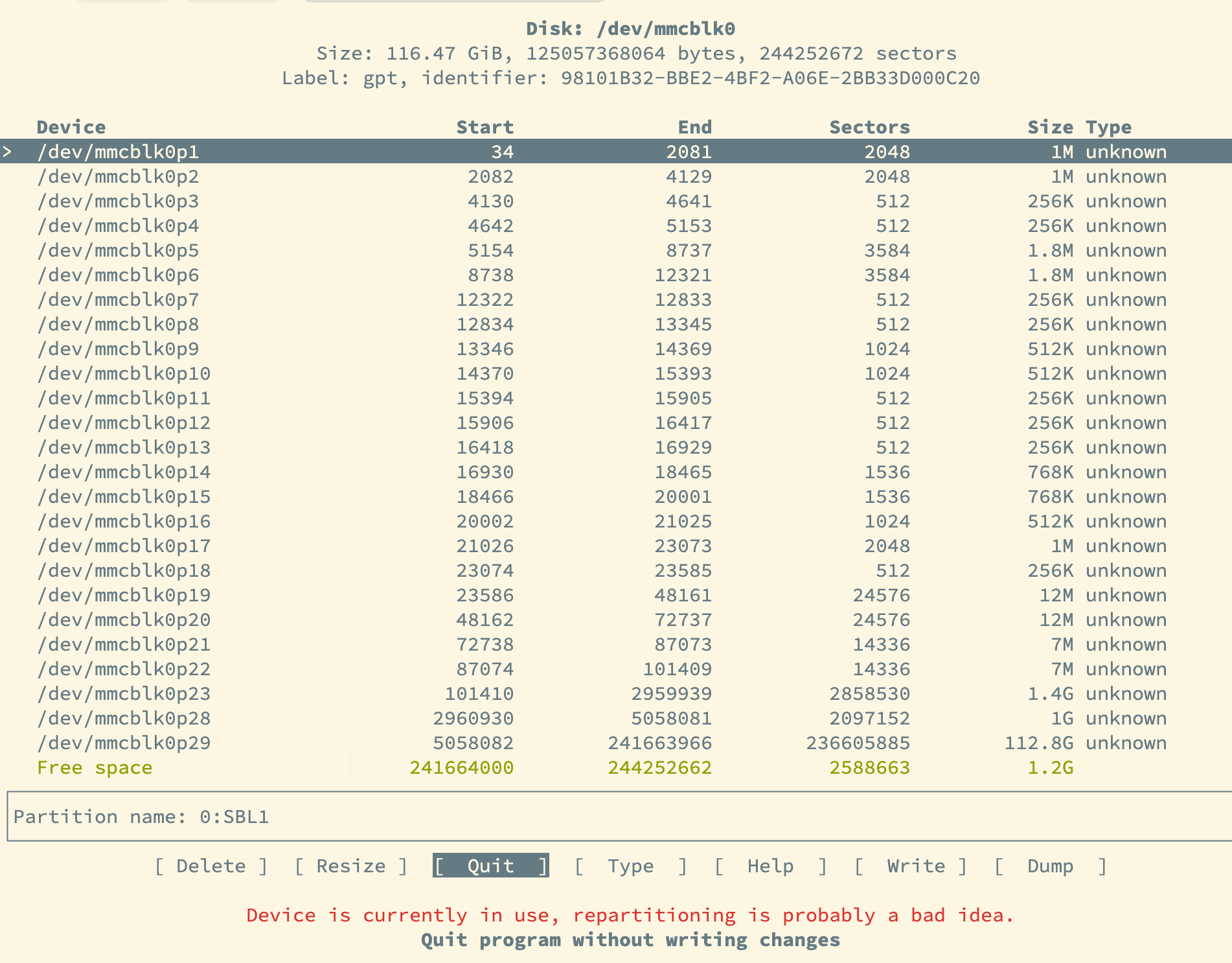
24-26删掉合并到23了 删除 Resize一下23即可,然后在线更新固件刷一下保存配置就行 就只扩容了!!
如果空间够用的可以不理他
好了 现在也可以单独安装 docker了.
安装Docker
直接 opkg install docker docker-compose dockerd luci-app-docker luci-app-dockerman luci-i18n-docker-zh-cn luci-i18n-dockerman-zh-cn luci-lib-docker
docker | 20.10.25-1 | 11410324 | The CLI used in the Docker CE and Docker EE products. | |
docker-compose | 2.15.1-1 | 12669126 | Multi-container orchestration for Docker | |
dockerd | 20.10.25-1 | 15115231 | The Docker CE Engine. | |
luci-app-docker | 1-12 | 659165 | Luci for Docker-CE | |
luci-app-dockerman | v0.5.25-1 | 53793 | Docker Manager interface for LuCI | |
luci-i18n-docker-zh-cn | 1-12 | 1775 | Translation for luci-app-docker - 简体中文 (Simplified Chinese) | |
luci-i18n-dockerman-zh-cn | v0.5.25-1 | 6659 | Translation for luci-app-dockerman - 简体中文 (Simplified Chinese) | |
luci-lib-docker | 0.3 |
关于 SWAP 交换分区
如果系统没有 挂载上去可以自己手动挂一下 不然docker好多东西不够用
检查和配置 Swap 分区的步骤
检查分区类型:
首先,确认/dev/mmcblk0p28是一个被标记为 Swap 的分区。可以使用blkid命令来查看设备的信息:blkid /dev/mmcblk0p28如果输出中没有提到
TYPE="swap",该分区就不是 Swap 类型,需更改为适当的文件系统。将分区格式化为 Swap:
如果blkid显示此分区不是 Swap,你需要先将其格式化为 Swap。注意,这将清除该分区上的所有数据。请确保备份重要数据!sudo mkswap /dev/mmcblk0p28启用 Swap 分区:
在格式化完成后,可以再次尝试启用 Swap 分区:sudo swapon /dev/mmcblk0p28确认 Swap 启用:
使用free -h或swapon --show命令确认 Swap 是否已经成功启用。free -hswapon --show
额外步骤
如果你不想使用分区作为 Swap,可以考虑使用一个 Swap 文件。通过之前的步骤创建一个 Swap 文件,简单易行且不会影响现有分区。
创建 Swap 文件(如之前所述):
如果你希望创建 Swap 文件,而不是使用分区,按照之前提供的步骤创建一个:
#创建一个 1GB 的 Swap 文件
 fallocate -l 1G /swapfile
# 设置权限
chmod 600 /swapfile
# 格式化为 Swap
mkswap /swapfile
# 启用 Swap 文件
swapon /swapfile
# 确认
free -h
自动挂载 Swap 分区或文件
要确保每次启动时自动启用 Swap,可以编辑 /etc/fstab 文件,添加 Swap 文件或分区的信息。例如,添加以下行来自动启用上面创建的 Swap 文件:
plaintext/swapfile swap swap defaults 0 0
下面在来 备份 把自己设置好的系统 DD打包备份一下 面的下次出错又要重新弄
备份现在用的 DD命令直接备份分区
备份 前先在 /mnt/mmcblk0p29/dd1G 或者自己更改路径
dd if=/mnt/mmcblk0p29/dd1G/mmcblk0p28_swap.bin of=/dev/mmcblk0p28 bs=4096 conv=notrunc
ttl下备份和刷入
分区备份指令
GPT备份
mmc read 0x50000000 0 22 && tftpboot 0x50000000 $filesize backup_gpt.binmmc read 0x44000000 0x00000022 0x800 && tftpboot 0x44000000 01_SBL1.binmmc read 0x44000000 0x00000822 0x800 && tftpboot 0x44000000 02_SBL1_1.binmmc read 0x44000000 0x00001022 0x200 && tftpboot 0x44000000 03_BOOTCONFIG.binmmc read 0x44000000 0x00001222 0x200 && tftpboot 0x44000000 04_BOOTCONFIG1.binmmc read 0x44000000 0x00001422 0xE00 && tftpboot 0x44000000 05_QSEE.binmmc read 0x44000000 0x00002222 0xE00 && tftpboot 0x44000000 06_QSEE_1.binmmc read 0x44000000 0x00003022 0x200 && tftpboot 0x44000000 07_DEVCFG.binmmc read 0x44000000 0x00003222 0x200 && tftpboot 0x44000000 08_DEVCFG_1.binmmc read 0x44000000 0x00003422 0x400 && tftpboot 0x44000000 09_TME.binmmc read 0x44000000 0x00003822 0x400 && tftpboot 0x44000000 10_TME_1.binmmc read 0x44000000 0x00003C22 0x200 && tftpboot 0x44000000 11_CDT.binbashmmc read 0x44000000 0x00003E22 0x200 && tftpboot 0x44000000 12_CDT_1.binmmc read 0x44000000 0x00004022 0x200 && tftpboot 0x44000000 13_APPSBLENV.binmmc read 0x44000000 0x00004222 0x600 && tftpboot 0x44000000 14_APPSBL.binmmc read 0x44000000 0x00004822 0x600 && tftpboot 0x44000000 15_APPSBL_1.binmmc read 0x44000000 0x00004E22 0x400 && tftpboot 0x44000000 16_ETHPHYFW.binmmc read 0x44000000 0x00005222 0x800 && tftpboot 0x44000000 17_ART.binmmc read 0x44000000 0x00005A22 0x200 && tftpboot 0x44000000 18_LICENSE.binmmc read 0x44000000 0x00005C22 0x6000 && tftpboot 0x44000000 19_WIFIFW.binmmc read 0x44000000 0x0000BC22 0x6000 && tftpboot 0x44000000 20_WIFIFW_1.binmmc read 0x44000000 0x00011C22 0x3800 && tftpboot 0x44000000 21_HLOS.binmmc read 0x44000000 0x00015422 0x3800 && tftpboot 0x44000000 22_HLOS_1.binmmc read 0x44000000 0x00018C22 0x3D400 && tftpboot 0x44000000 23_rootfs.binmmc read 0x44000000 0x00055C22 0x3D400 && tftpboot 0x44000000 24_rootfs_1.binmmc read 0x44000000 0x00092C22 0x200 && tftpboot 0x44000000 25_factory.binmmc read 0x44000000 0x00092E22 0x20000 && tftpboot 0x44000000 26_plugin.binmmc read 0x44000000 0x00292E22 0x4000 && tftpboot 0x44000000 27_log.bin28 29 就不要备份。。除非备份到外置 太大了 28是sWAP交换分区格式化新建就可以
29是储存空间
还原
分区还原指令
GPT写入
tftpboot 0x50000000 gpt.bin && mmc write 0x50000000 0 22tftpboot 0x44000000 01_SBL1.bin && mmc write 0x44000000 0x00000022 0x800tftpboot 0x44000000 02_SBL1_1.bin && mmc write 0x44000000 0x00000822 0x800tftpboot 0x44000000 03_BOOTCONFIG.bin && mmc write 0x44000000 0x00001022 0x200tftpboot 0x44000000 04_BOOTCONFIG1.bin && mmc write 0x44000000 0x00001222 0x200tftpboot 0x44000000 05_QSEE.bin && mmc write 0x44000000 0x00001422 0xE00tftpboot 0x44000000 06_QSEE_1.bin && mmc write 0x44000000 0x00002222 0xE00tftpboot 0x44000000 07_DEVCFG.bin && mmc write 0x44000000 0x00003022 0x200tftpboot 0x44000000 08_DEVCFG_1.bin && mmc write 0x44000000 0x00003222 0x200tftpboot 0x44000000 09_TME.bin && mmc write 0x44000000 0x00003422 0x400tftpboot 0x44000000 10_TME_1.bin && mmc write 0x44000000 0x00003822 0x400tftpboot 0x44000000 11_CDT.bin && mmc write 0x44000000 0x00003C22 0x200tftpboot 0x44000000 12_CDT_1.bin && mmc write 0x44000000 0x00003E22 0x200tftpboot 0x44000000 13_APPSBLENV.bin && mmc write 0x44000000 0x00004022 0x200tftpboot 0x44000000 14_APPSBL.bin && mmc write 0x44000000 0x00004222 0x600tftpboot 0x44000000 15_APPSBL_1.bin && mmc write 0x44000000 0x00004822 0x600tftpboot 0x44000000 16_ETHPHYFW.bin && mmc write 0x44000000 0x00004E22 0x400tftpboot 0x44000000 17_ART.bin && mmc write 0x44000000 0x00005222 0x800tftpboot 0x44000000 18_LICENSE.bin && mmc write 0x44000000 0x00005A22 0x200tftpboot 0x44000000 19_WIFIFW.bin && mmc write 0x44000000 0x00005C22 0x6000tftpboot 0x44000000 20_WIFIFW_1.bin && mmc write 0x44000000 0x0000BC22 0x6000tftpboot 0x44000000 21_HLOS.bin && mmc write 0x44000000 0x00011C22 0x3800tftpboot 0x44000000 22_HLOS_1.bin && mmc write 0x44000000 0x00015422 0x3800tftpboot 0x44000000 23_rootfs.bin && mmc write 0x44000000 0x00018C22 0x3D400tftpboot 0x44000000 24_rootfs_1.bin && mmc write 0x44000000 0x00055C22 0x3D400tftpboot 0x44000000 25_factory.bin && mmc write 0x44000000 0x00092C22 0x200tftpboot 0x44000000 26_plugin.bin && mmc write 0x44000000 0x00092E22 0x20000tftpboot 0x44000000 27_log.bin && mmc write 0x44000000 0x00292E22 0x4000PS :ttl走TFTP的应该有大小限制。。。60M应该恢复不了。。 恢复小的启动分区后用uboot刷入固件即可
其实后面23-24的大分区ttl直接都难以刷入, 最简单就只是恢复前面分区和刷入uboot
理论上在uboot刷入固件都能启动了。。 如果不行,多等等 实在不行那就再看看卡哪里。。。。
固件 备份下载
https://p.godsun.pro/路由器/JDC-BE6500
这里有刷机工具 固件 和 备份的系统... 需要的自行安排!!
谢谢观看..... 加入注明来处!

点击链接加入群聊:https://qm.qq.com/q/3KmJZfC6w8
💖 打赏支持
如果这篇文章帮到了你,欢迎打赏支持

微信扫一扫,赞赏支持

tftpboot gpt1.bin && write 0x50000000 0x00000000 0x00000022
大佬在这个高通芯片的设备上,部署docker成功了吗?我这儿
docker run --rm hello-world都不行,报错:docker: Error response from daemon: failed to create shim task: OCI runtime create failed: runc create failed: unable to start container process: can't get final child's PID from pipe: EOF: unknown.换个最新得固件。。
潘多拉 QWRT for 京东云赵云 BE6500 2.5Gx4 WIFI7 BE6500 R25.9.3 闭源固件发布-OPENWRT专版-恩山无线论坛 – Powered by Discuz! 用的是这个,磁盘ext4大分区不行,不知道这个是不是最新的。。docker info一堆warning no support
哪里得太老。。。
哪里有新的固件,还烦请赐教
你都刷到这里了 还找不到呀。。 上面那么大的网盘资源。。。
docker 运行容器 总是报错 segmentation fault 咋解决啊,现在是固件版本QWRT R25.11.11 (QSDK 12.5) / main (git-25.291.32732-ebeb53b)内核版本5.4.213
你应该拉了不是你arm64架构的镜像吧、、、、